ACPS Application Approval
You will learn how to act pending ACPS document using the online application.
You will learn
- How to act for pending new/renewal ACPS application
|
1 |
Step 1: Select pending ACPS application document |
-
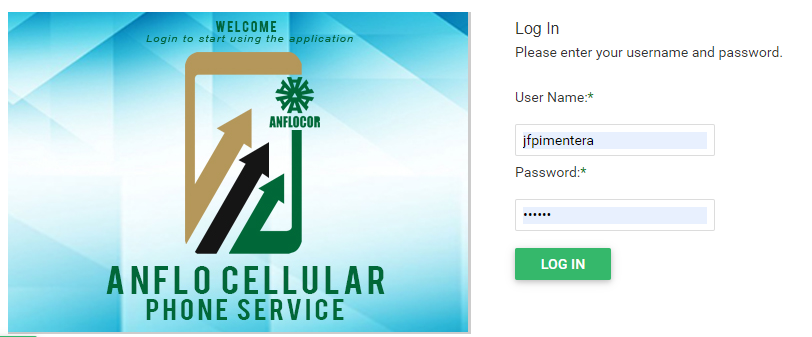
Log in to the ACPS system using username and password (Active Directory)
-
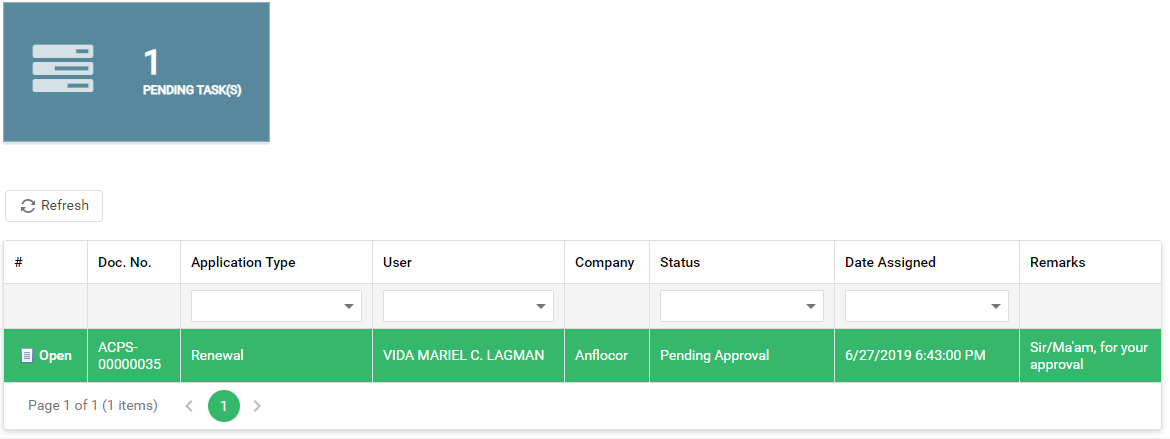
Under Pending Task(s) section in your homepage/dashboard, click the Open button
-
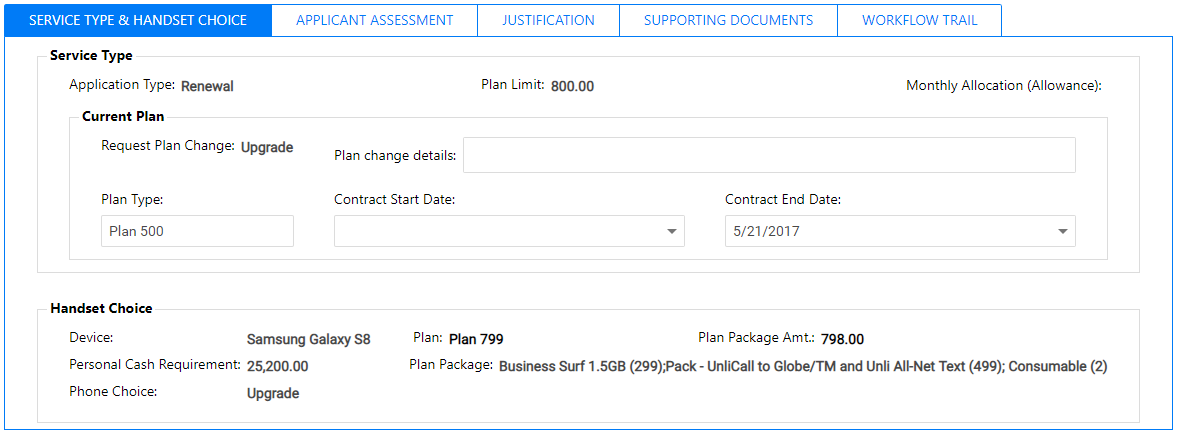
Go to the PLAN Tab to review details
-
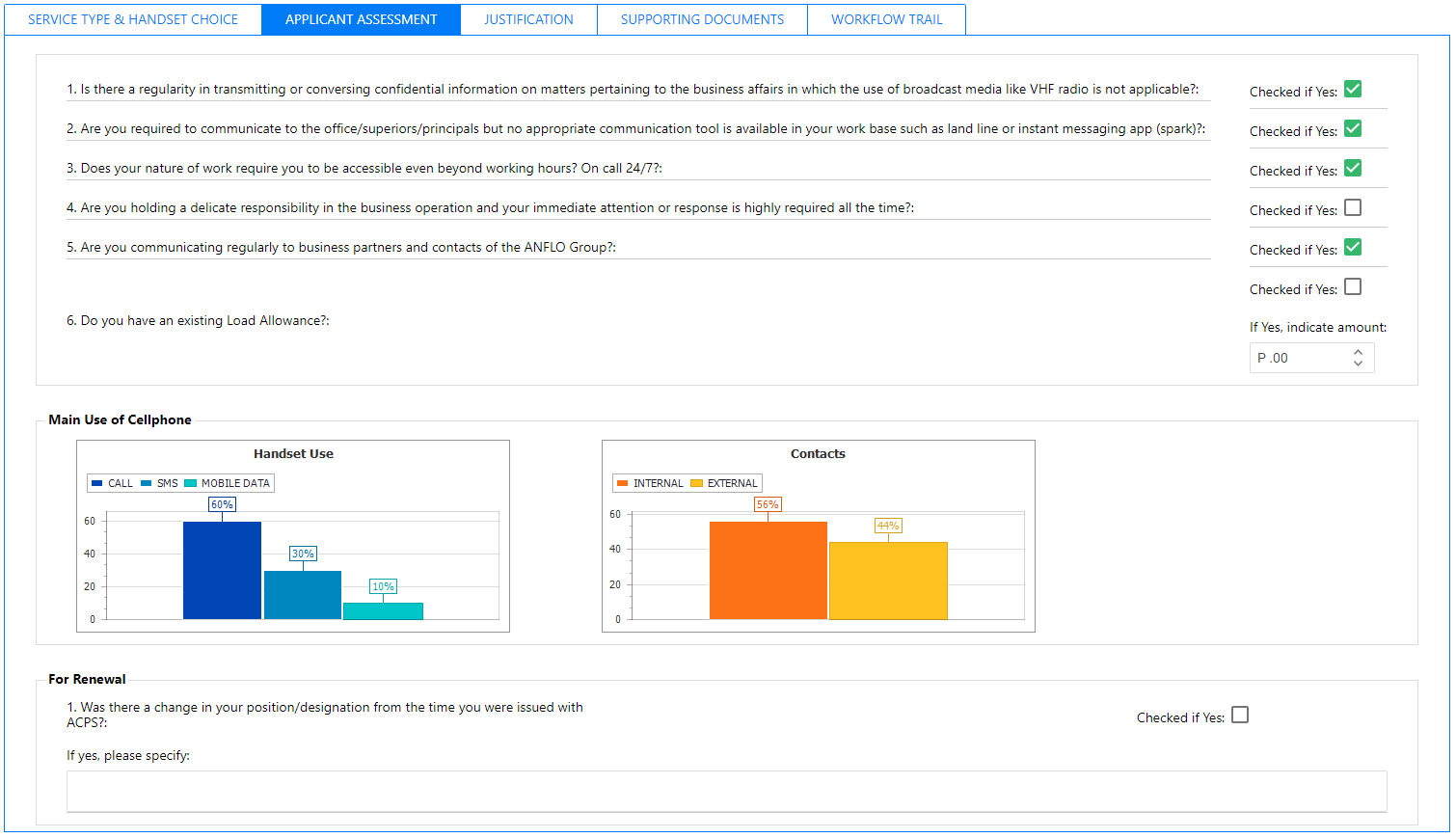
Go to the APPLICANT ASSESSMENT Tab (For below managers only) to review details
-
Go to the JUSTIFICATION Tab to review details

-
Go to the SUPPORTING DOC. Tab, click the Download button to open attachment

-
Select your Approval Action
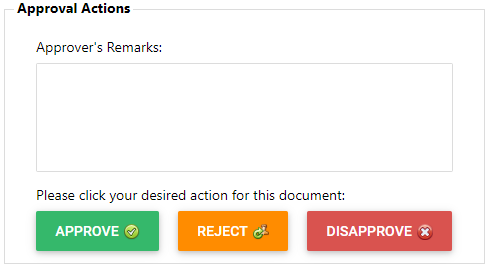
- APPROVE: Proceeds to next process
- REJECT: Returns the document to the requestor for document corrections
- DISAPPROVE: Cancelled application
|
2 |
Step 2: Review Plan details |
|
3 |
Step 3: Review Applicant Assessment details |
|
2 |
Step 4: Review Justification details |
|
2 |
Step 5: Review Attach supporting document(s) |
|
2 |
Step 6: Document approval |
Prerequisites
- Go to the online ACPS system using this url https://acps.anflocor.com/ or click Here
- User must have an access to the system and a role as an Approver
- Assigned pending application document for approval