Handset Update
You will learn how to change Handset of the processed Plan Application.
|
1 |
Step 1: Select the Plan Account to update |
-
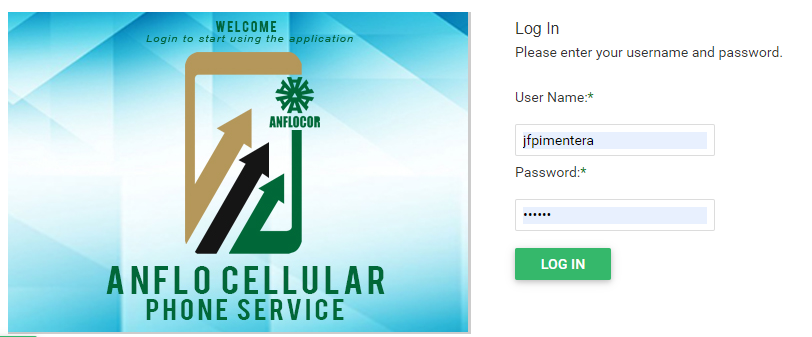
Log in to the ACPS system using username and password (Active Directory)
-
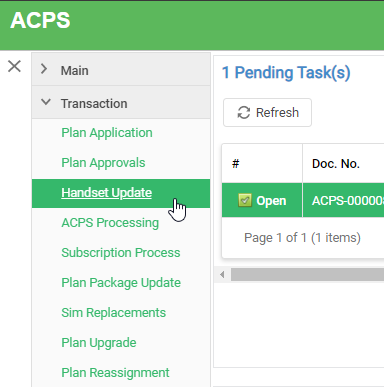
Under Transaction section in your menu, select Handset Update
-
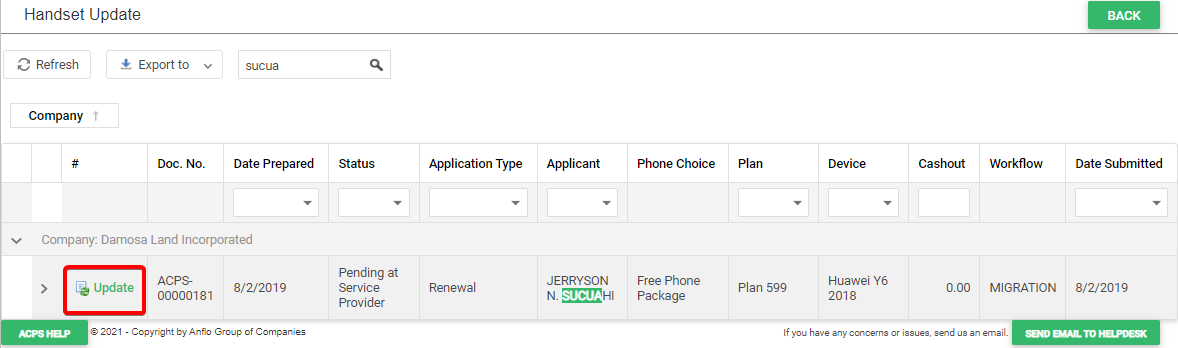
Search the Plan Account then click the Update button to open the document.
|
2 |
Step 2: Recommend new Handset to user |
-
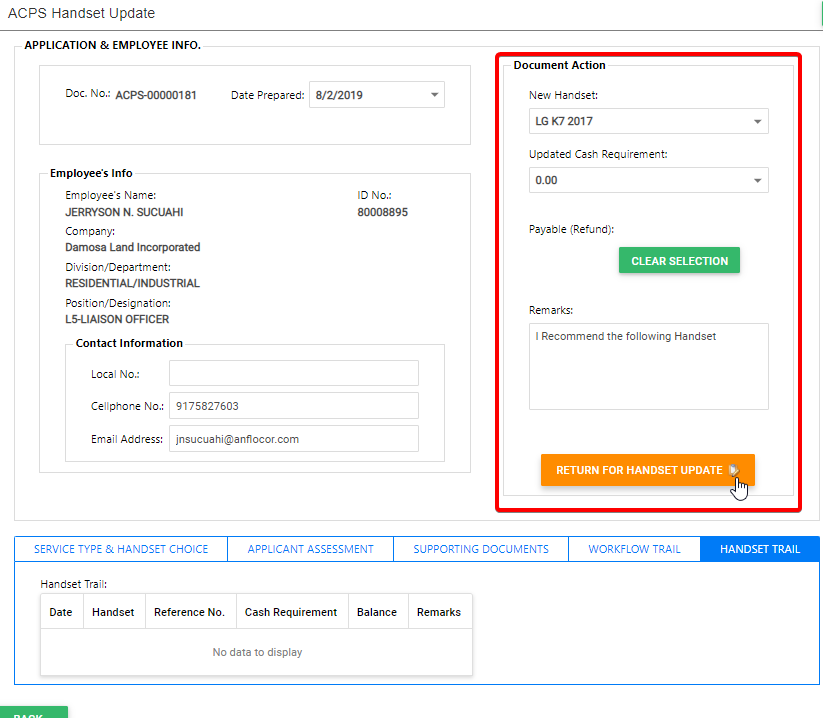
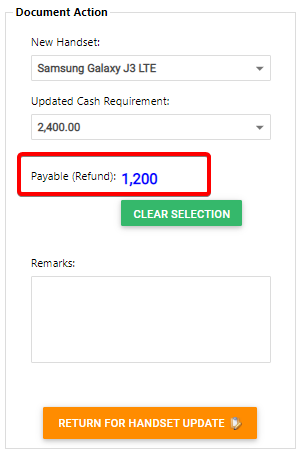
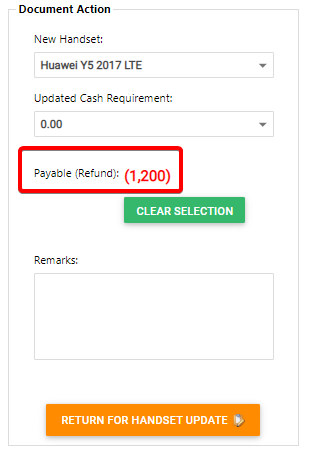
Under the DOCUMENT ACTION section, fill-up the required fields. Click the RETURN FOR HANDSET UPDATE button to proceed to user confirmation.
Note: Changes applies once user confirms the updates.
-
Note: Changes in Cashout Requirement affects process flow.
If Cashout is higher than previous, the user must pay the excess.
PROCESS: User>>OTC>>Cashier
If Cashout is lower than previous, the user receives refund.
PROCESS: RTM>>Cashier
|
3 |
Step 3: User Confirmation |
-
Log in to the ACPS system using username and password (Active Directory)
-
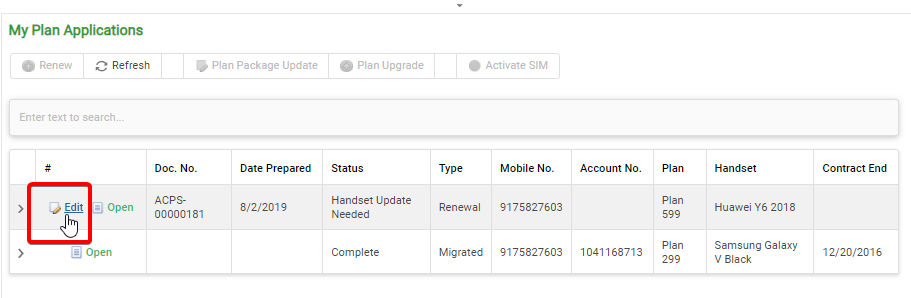
Click the Edit button to view document
-
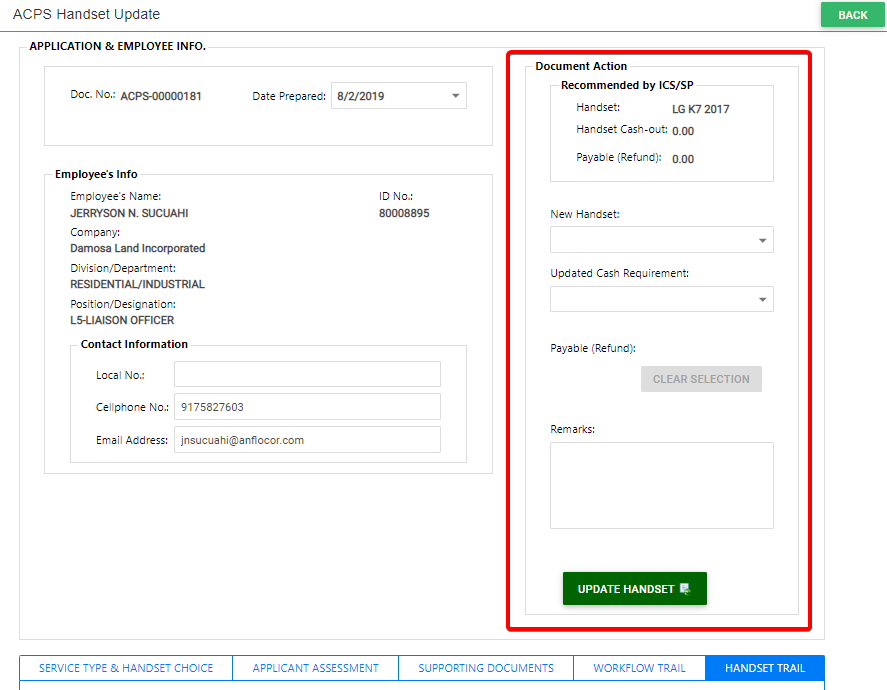
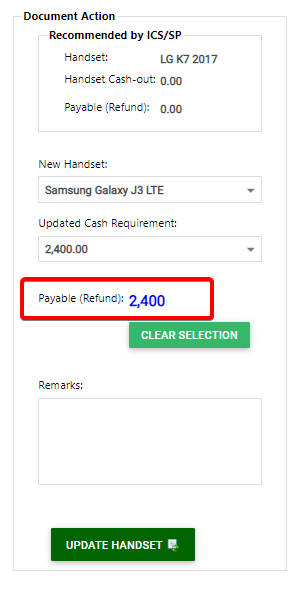
Under the Document Action section. You can apply changes by following the Recommended handset by the ICS/SP or you can also select your own by selecting New Handset. Click the UPDATE HANDSET button to saved changes.
-
Note: Changes in Cashout Requirement affects process flow.
If Cashout is higher than previous, the user must pay the excess.
PROCESS: User>>OTC>>Cashier
If Cashout is lower than previous, the user receives refund.
PROCESS: RTM>>Cashier
Prerequisites
- Go to the online ACPS system using this url https://acps.anflocor.com/ or click Here
- User must have an ICS and Applicant access to the system