Plan Application Update
You will learn how to edit submitted plan application.
You will learn
- How to change plan application's Status and other fields
- How to change plan application's Plan Package / Tack-on
- How to change plan application's Handset
|
1 |
Update fields via row edit |
-
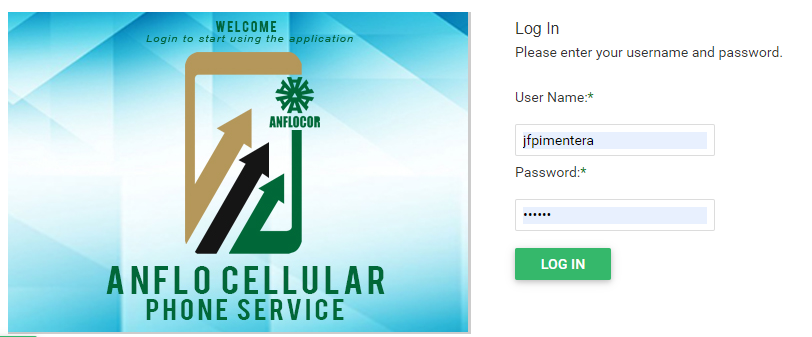
Log in to the ACPS system using username and password (Active Directory)
-
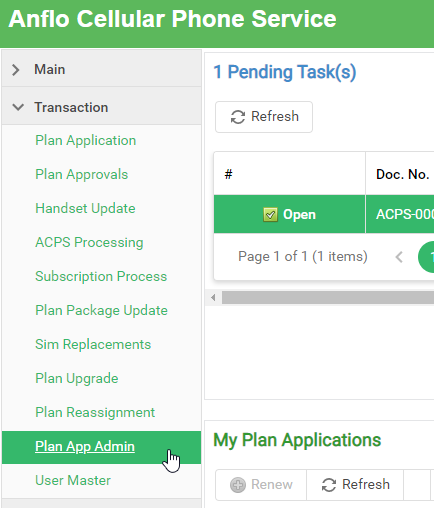
Under Transaction section in your menu, select Plan App Admin
-
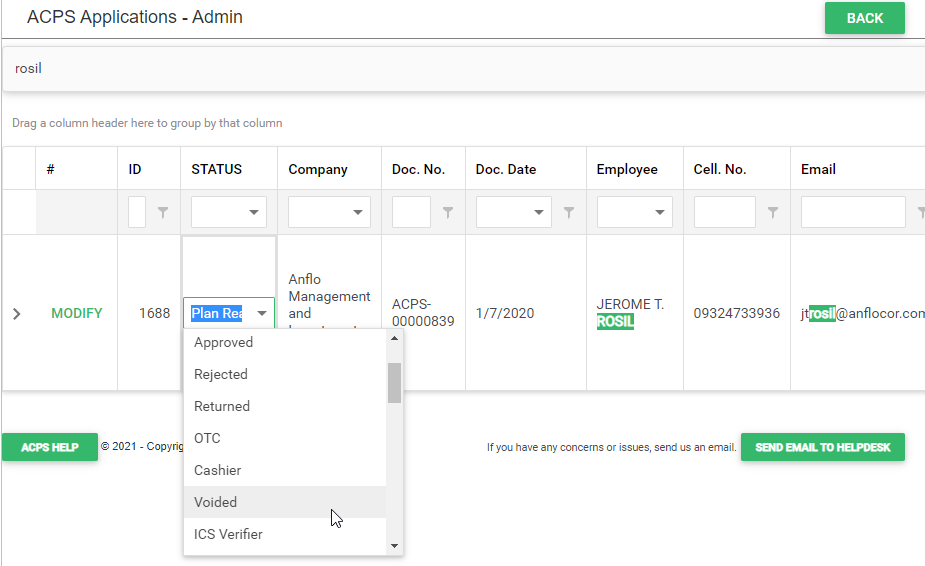
Search the Plan Account and double click to the field you want to change and click the Save Changes button.
-
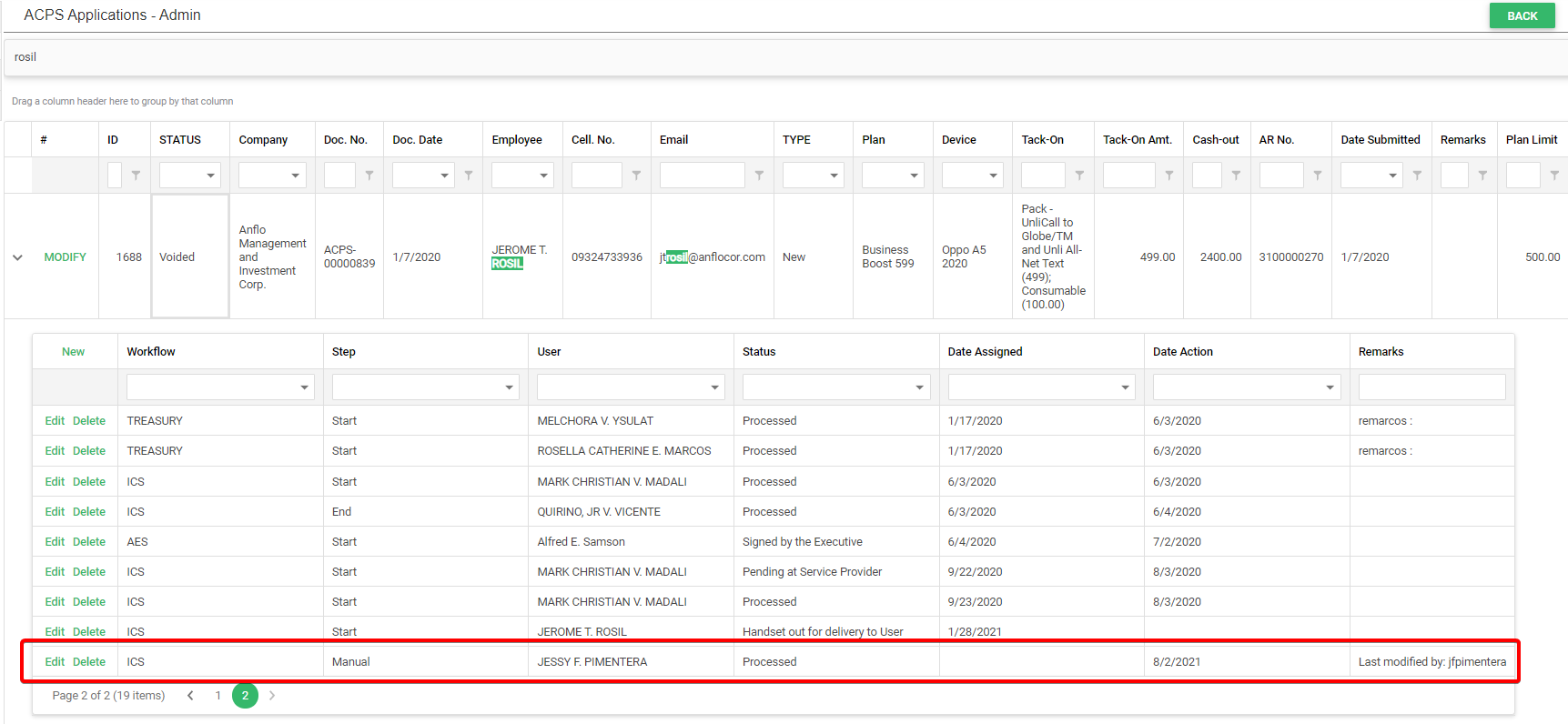
An activity log will be inserted whenver there's changes made.
|
2 |
Update Handset and Tack-on fields via MODIFY |
-
Log in to the ACPS system using username and password (Active Directory)
-
Under Transaction section in your menu, select Plan App Admin
-
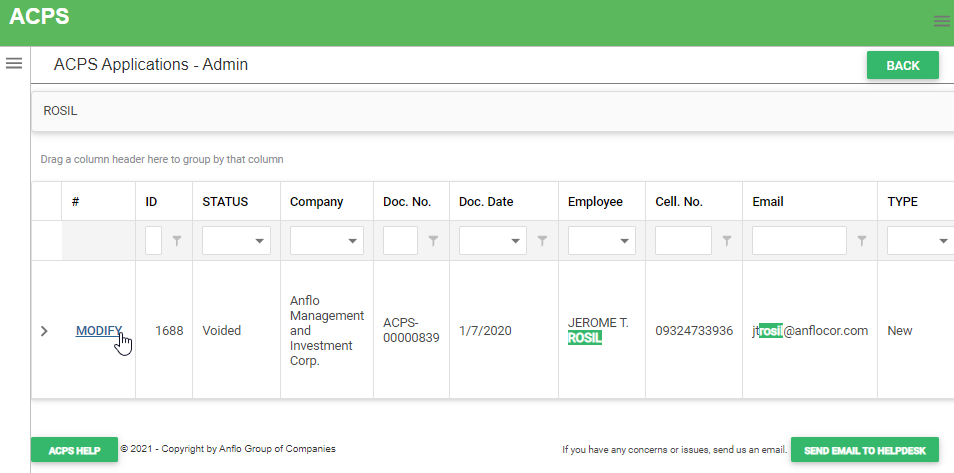
Search the Plan Account and click the MODIFY button.
-
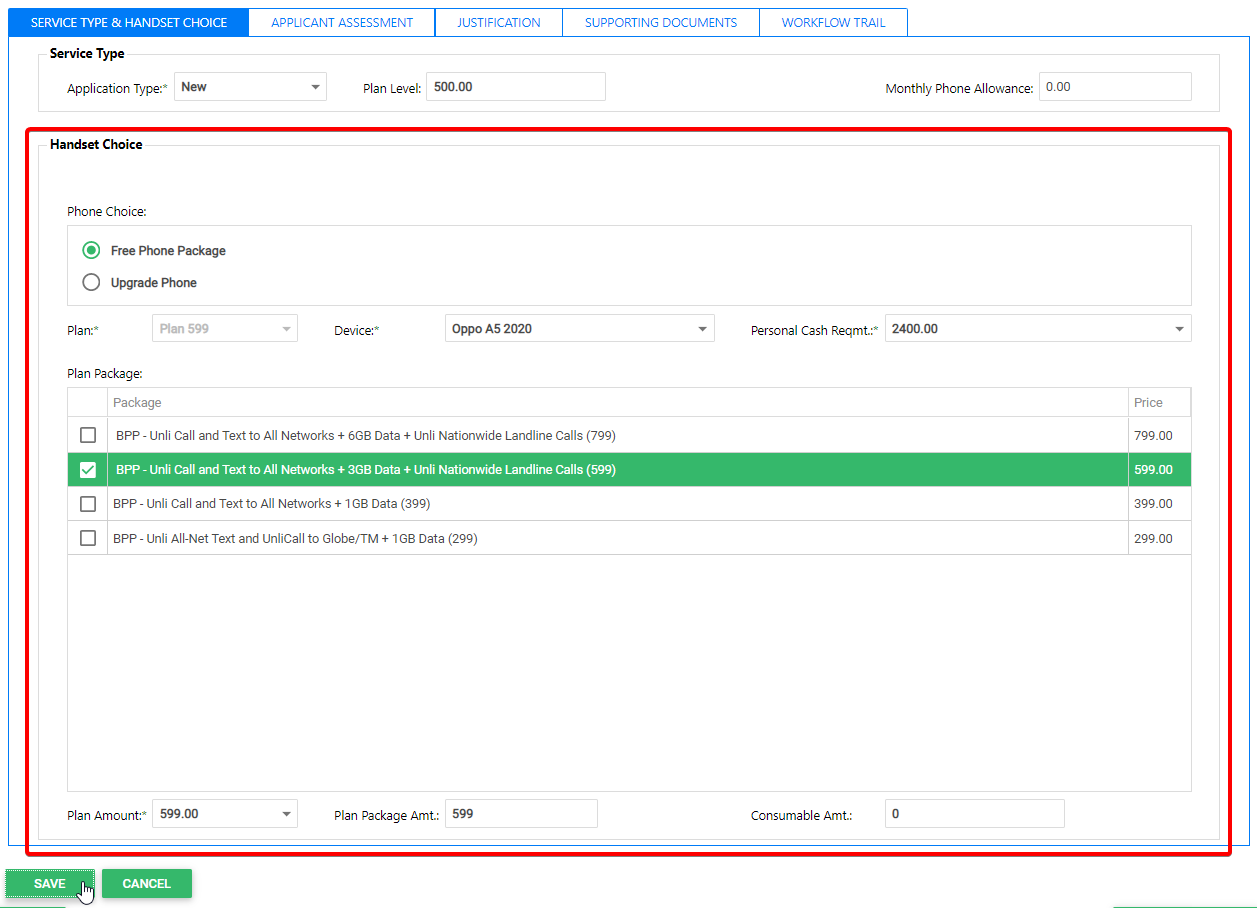
Go to SERVICE TYPE & HANDSET CHOICE tab. You can change values under Handset Choice section which covers Handset and Plan Package / Tack-on.
Note: Changing Handset must have the same Cash Requirement to maintain process flow.
For Handset change with updated cashout, see Handset Update.
Prerequisites
- Go to the online ACPS system using this url https://acps.anflocor.com/ or click Here
- User must have an Admin access to the system