Plan Reassignment
You will learn how to transfer account from one user to another.
|
1 |
Step 1: Select the Plan Account to update |
-
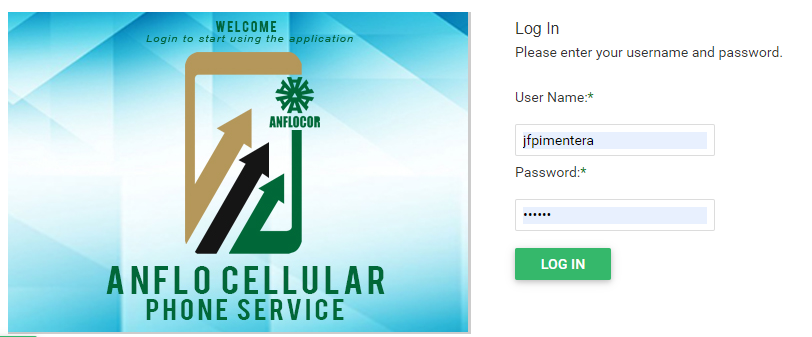
Log in to the ACPS system using username and password (Active Directory)
-
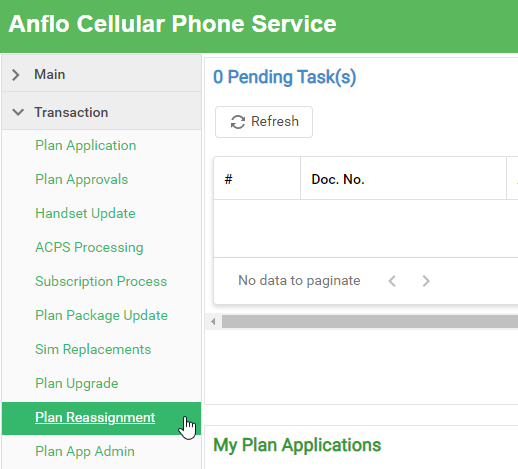
Under Transaction section in your menu, select Plan Reassignment
-
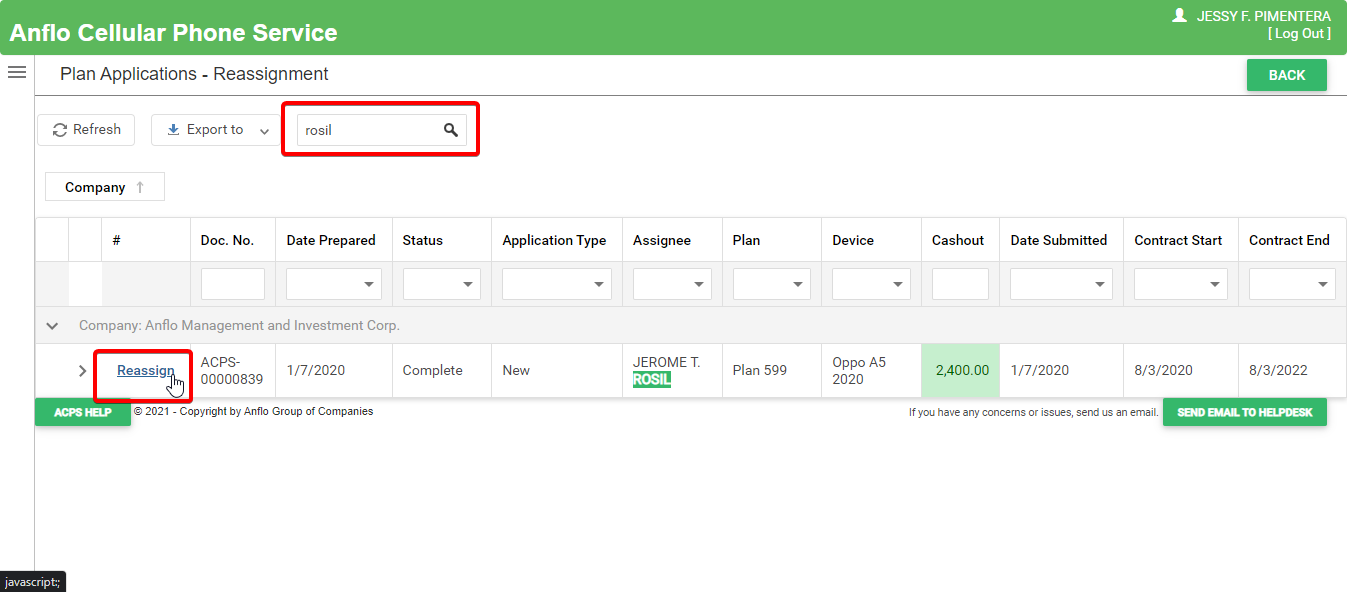
Search the Plan Account then click the Reassign button to open the document.
|
2 |
Step 2: Fill-up the NEW ASSIGNEE fields |
-
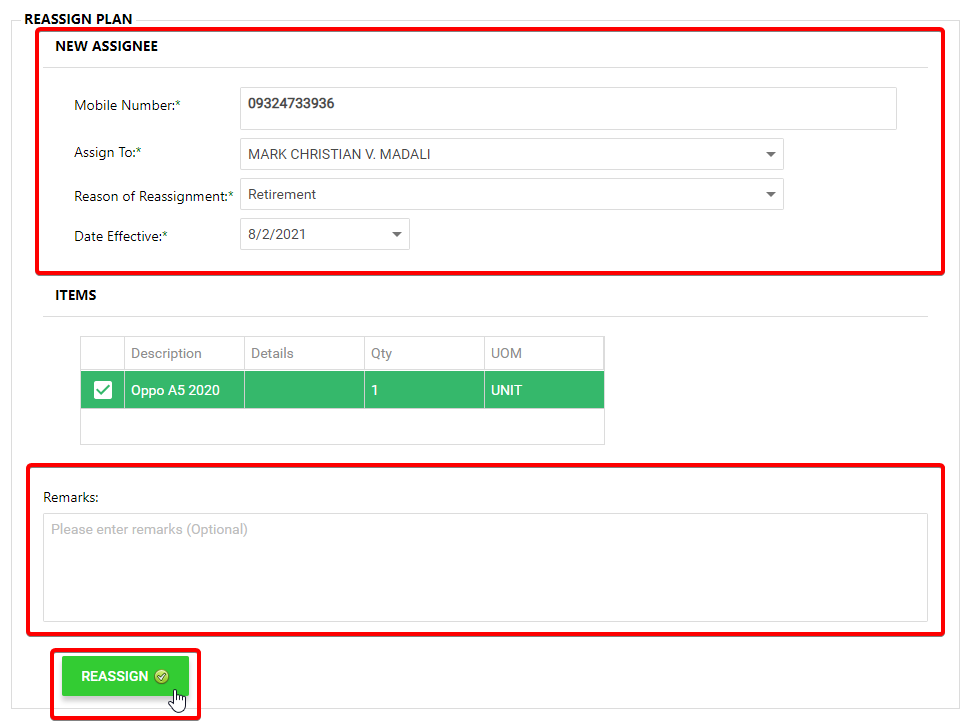
Under the REASSIGN PLAN section, fill-up the required fields. Click the REASSIGN button to proceed to approval.
Note: Changes applies once request is fully approved
|
3 |
Step 3: Reassignment Approval |
-
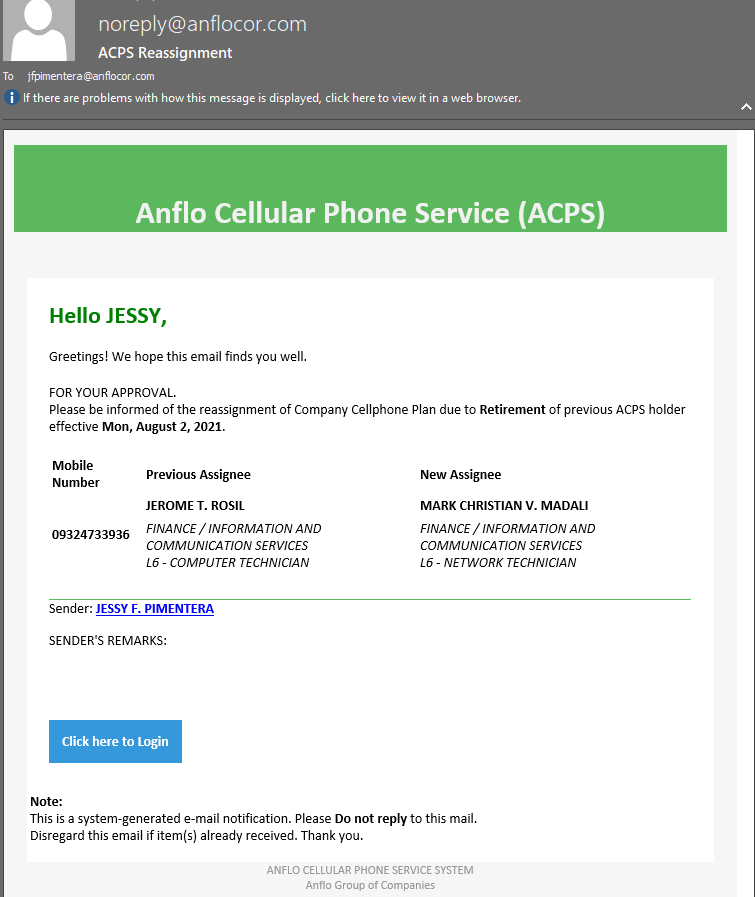
Approver receives an email notification
-
Log in to the ACPS system using username and password (Active Directory)
-
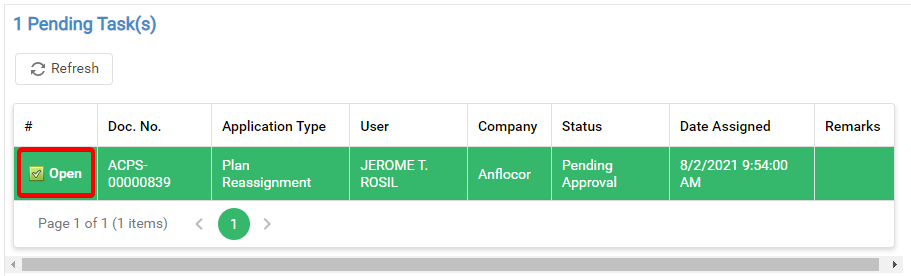
Locate Plan Reassignment account in the Pending Task(s) and click the Open button to act
-
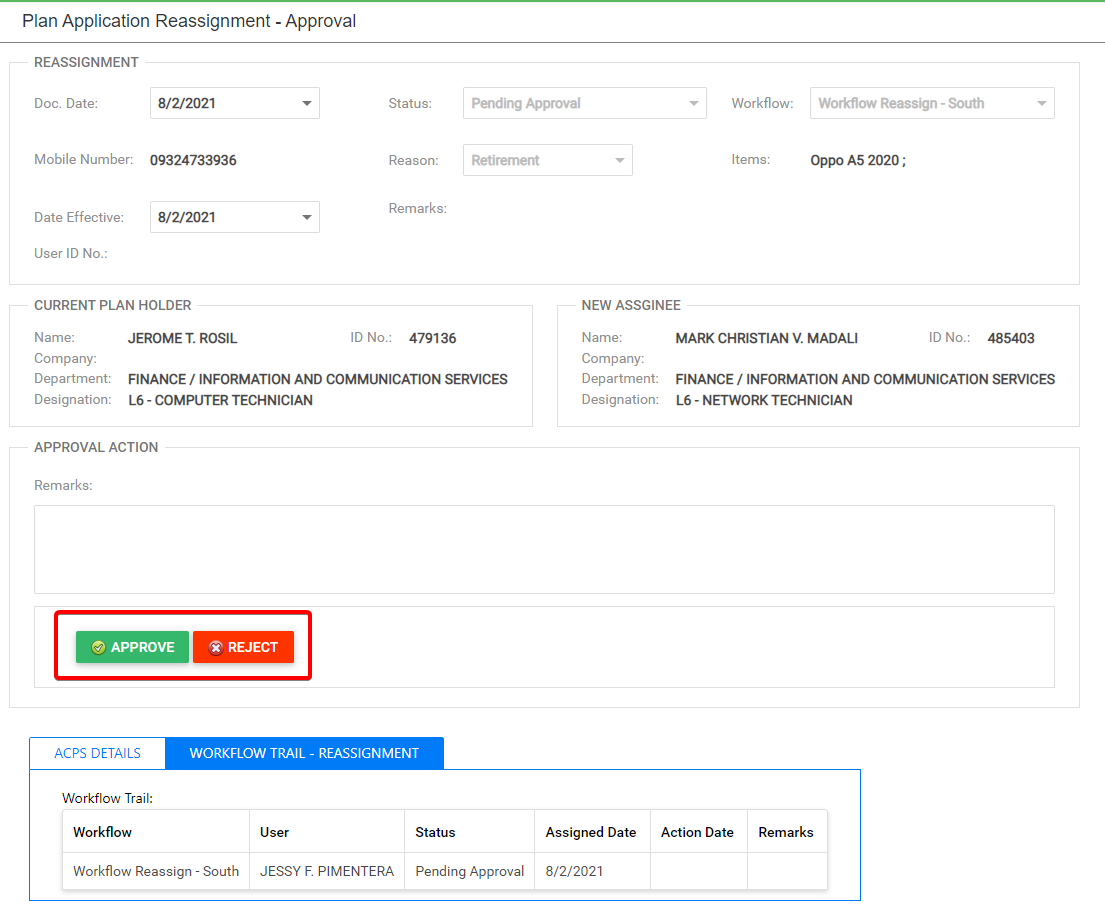
Review the document and select APPROVAL ACTIONS.
APPROVE: Changes will apply to Plan Account
REJECT: Changes will not apply and document will return Step 1
Prerequisites
- Go to the online ACPS system using this url https://acps.anflocor.com/ or click Here
- User must have an Admin access to the system