User Access Setup
You will learn how to add access to users.
You will learn
- How to add user to access ACPS system
- How to assign role(s) to user
|
1 |
Step 1: Add user to ACPS System |
-
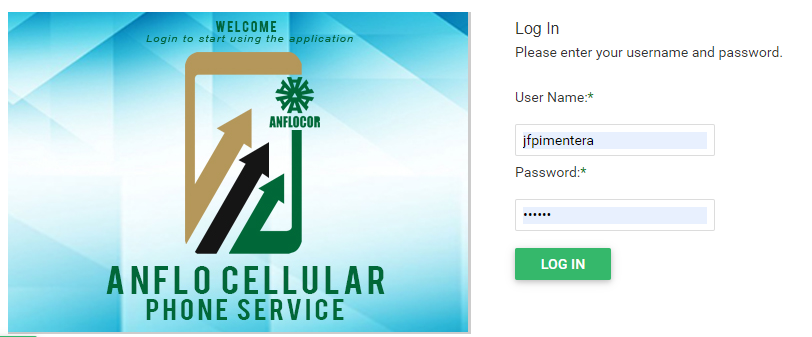
Log in to the ACPS system using username and password (Active Directory)
-
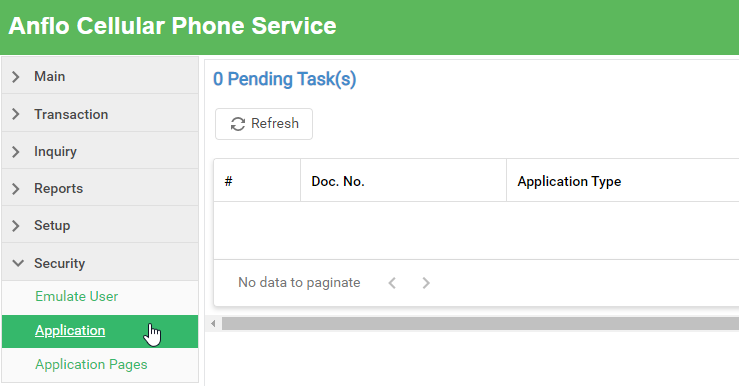
Under Security section in your menu, select Application
|
2 |
Step 2: Add User |
-
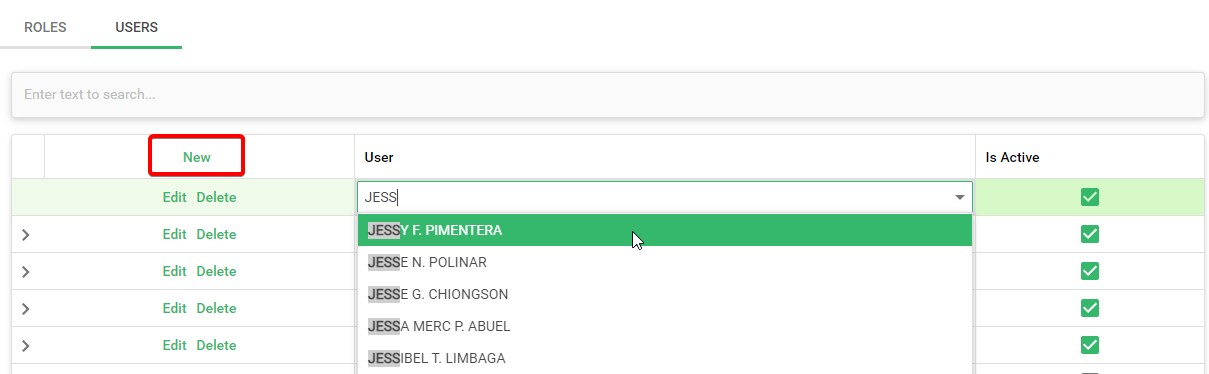
Go to the USER Tab, click the NEW button and enter employee's name
-
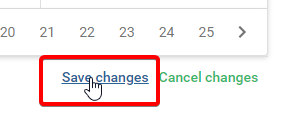
Click the Save Changes button located at the lower right corner of the table.
|
3 |
Step 3: Add User Role |
-
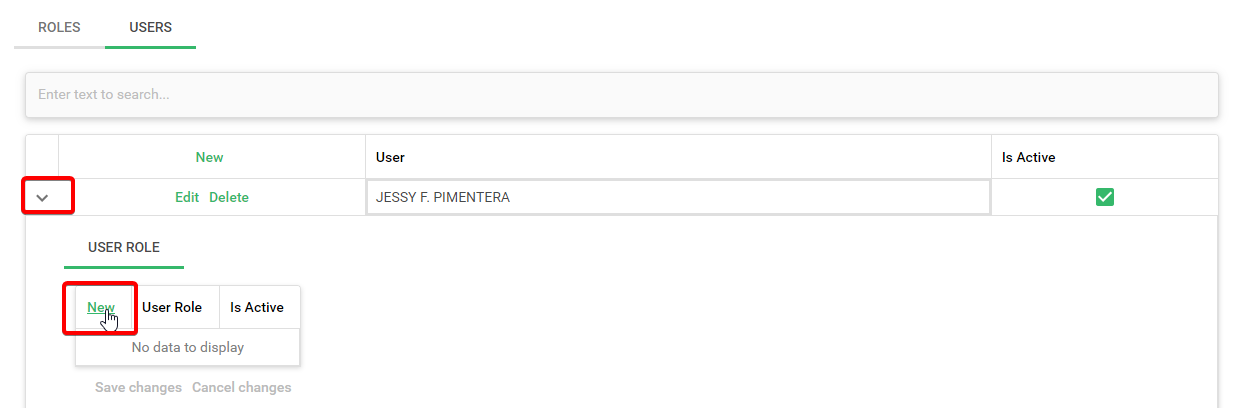
Expand the user record and click the NEW button to add user role
-
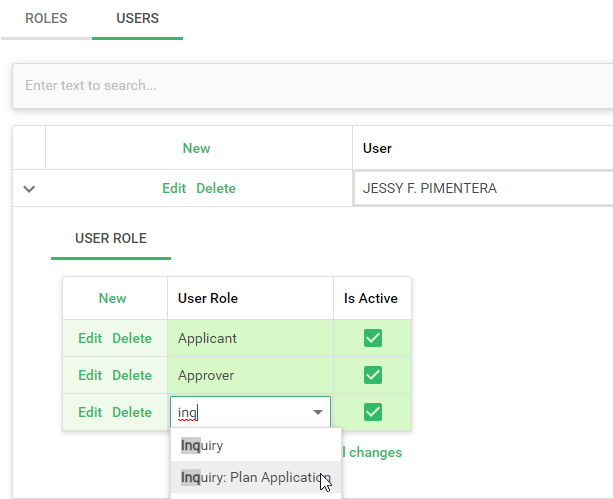
You can assign one or more roles to the user
- Applicant: User can only create ACPS Application
- Approver: User can apply and approve ACPS Application
- See Menu Page Setup for more info
-
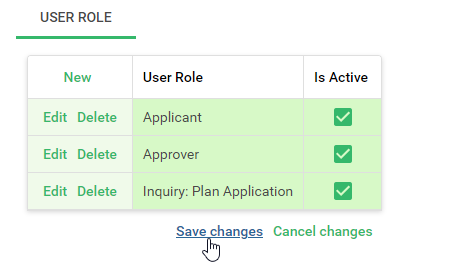
Click the Save Changes button
|
4 |
Step 4: Add User to the Workflow Group |
- See Workflow Group Setup user guide and proceed to Step 3: Add User(s)
Prerequisites
- Go to the online ACPS system using this url https://acps.anflocor.com/ or click Here
- User must have an Admin access to the system